

Download

Race Insight

The Motorsport Data Analysis Platform

"Without data you're just another person with an opinion"

— W. Edward Deming

Analyze your Data, compare Laps, and improve your Delta with professional-grade data analysis.

Now Available in Early Access
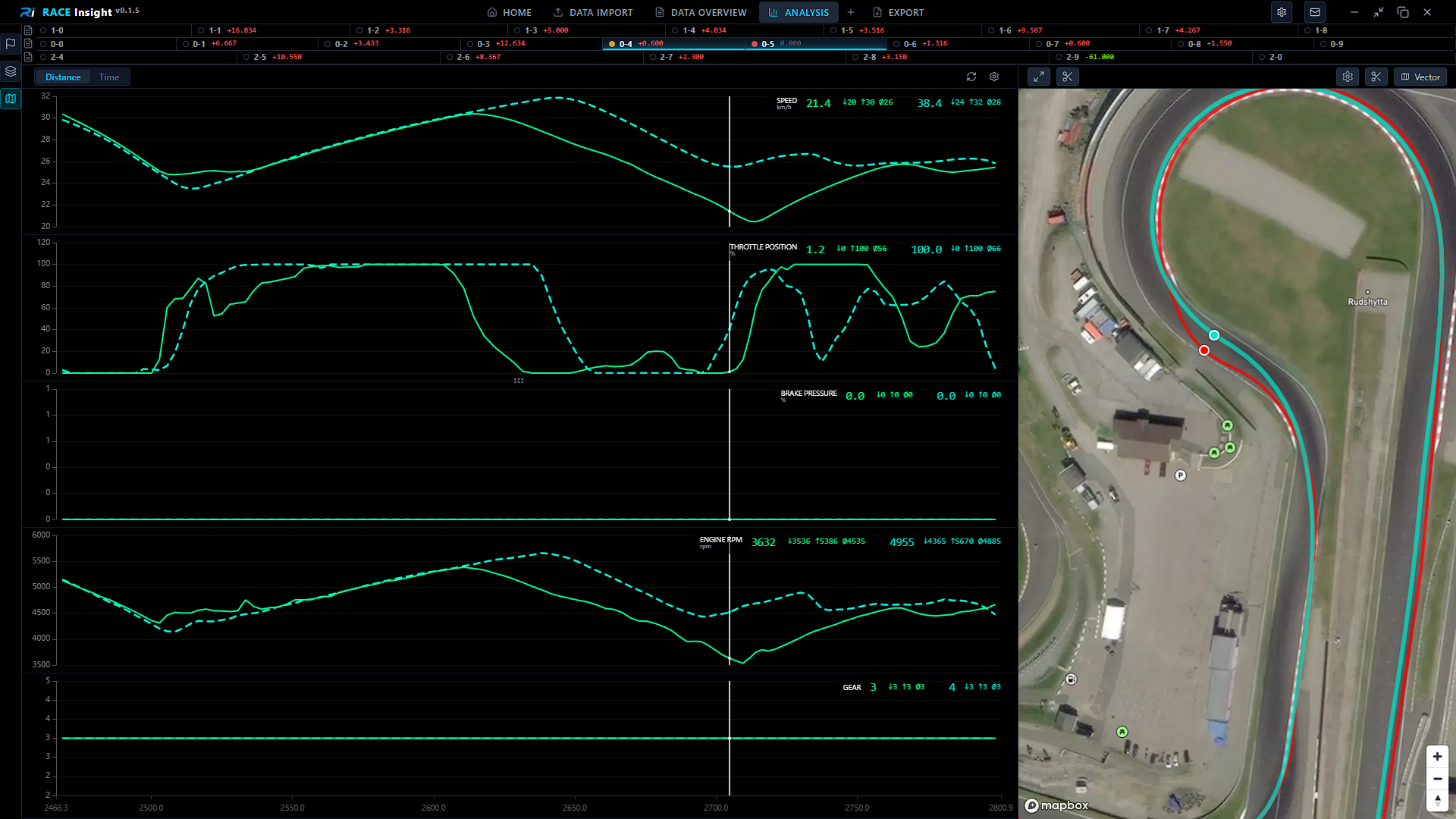
Lap Comparison
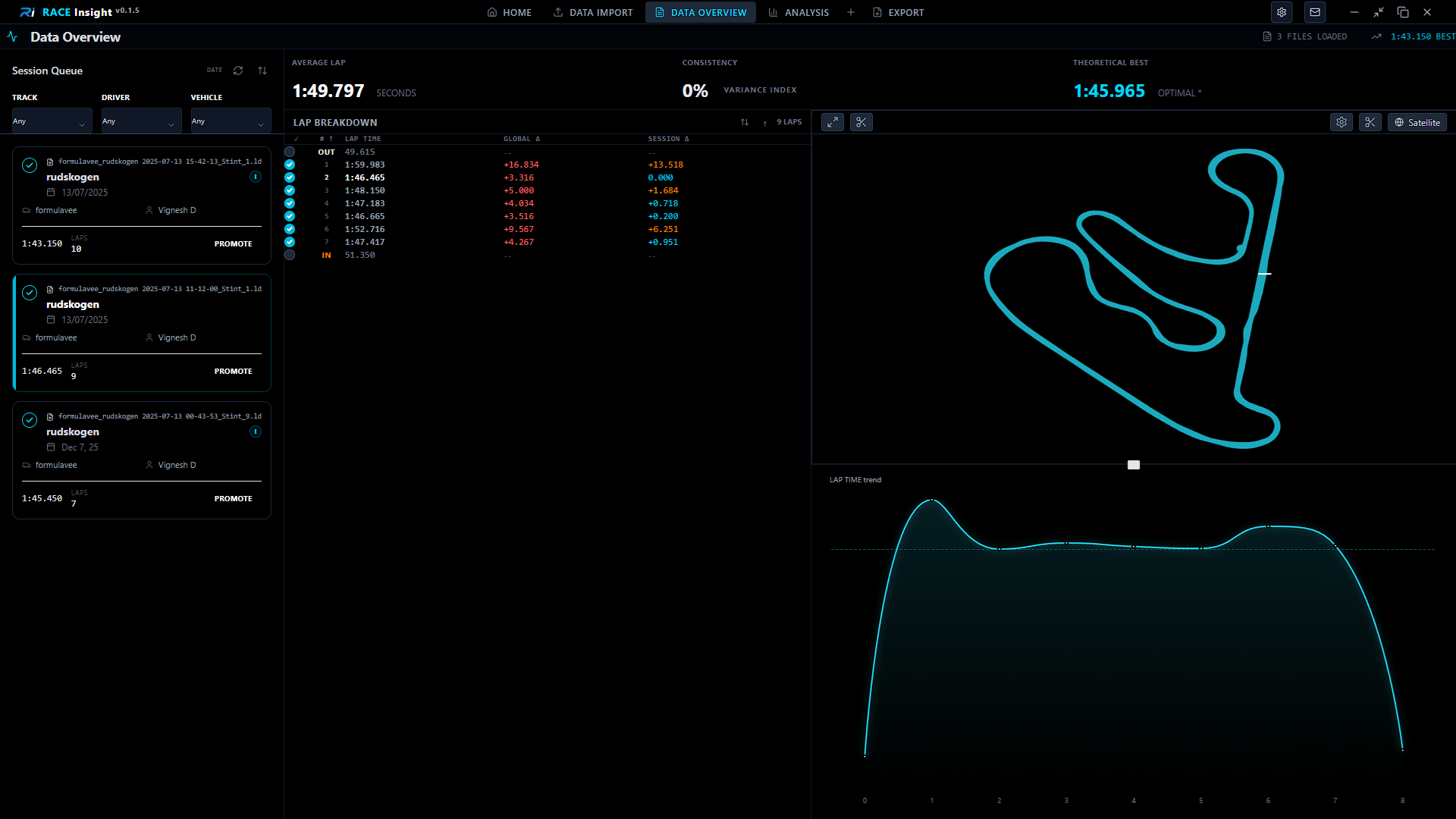
Data Overview
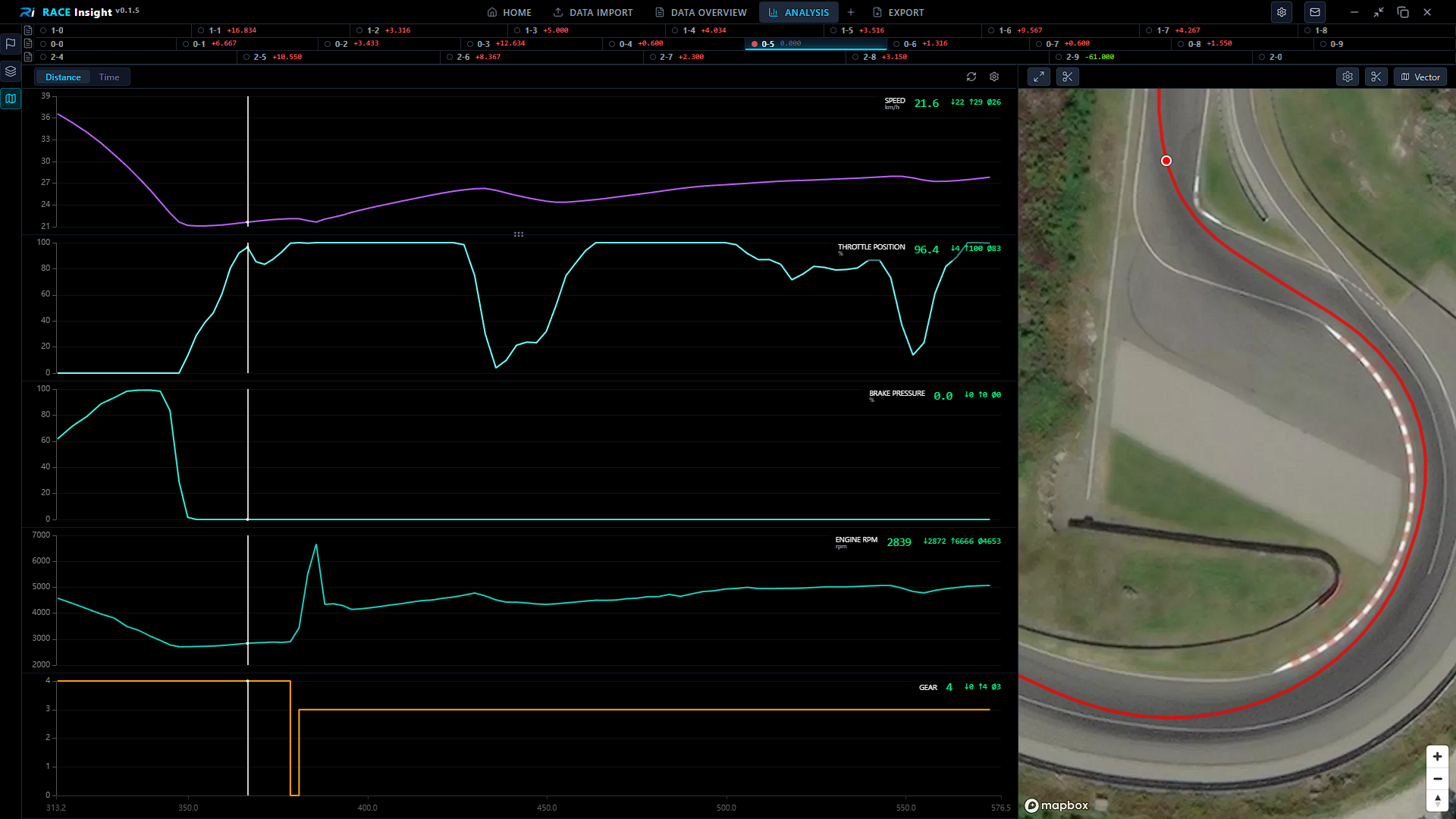
Satellite View

What Race Insight does

Open a logger file, find the session, compare laps, then take the results with you.

Step 1 · Import

Open the files your logger already writes

Drop a file into Race Insight. It is read on your computer.

  • Large files, 200 MB and up, are ready in seconds.
  • Gaps in the data stay visible. Missing samples are never filled with made-up values.
  • After your first sign-in, import and analysis work offline. Map tiles need a connection.

Supported formats

  • iRacing .ibt
  • MoTeC .ld, .ldx
  • AiM .xrk
  • VBOX .vbo, .vbb
  • Autosport Labs .log
  • CSV .csv
  • Spreadsheets .xlsx, .xls, .ods

Step 2 · Sessions

Find the session you want

  • Filter by track, driver or vehicle. Sort by date, lap count or fastest lap.
  • Each session shows its average lap, consistency and theoretical best.
  • The lap list, track map and lap-time trend sit on one screen.

Step 3 · Analysis

Compare laps and see where the time goes

  • Overlay any laps by distance or time, even ones recorded at different rates.
  • Move the cursor on one graph and every graph, value and the track map follow.
  • See your line on satellite imagery or a vector map.
  • Next release Math channels with derivative, integral, smoothing and lookup functions.
  • Next release Your own track splits, with sector times and a theoretical best lap.

Step 4 · Workbook

Lay out the screen the way you work

  • Drag, resize and arrange graphs, track maps, speed dials, throttle and brake bars, tyre monitors and G-force gauges.
  • Next release Lap analysis widgets: corner map, braking and acceleration zones, corner comparison, lap consistency, sector analysis, suspension velocity and tyre grip.
  • Next release A session report with every lap analysis in one place, and a coaching card that shows the corners where you lose the most time.

Step 5 · Export

Take your data to other tools

  • Export CSV for Excel, MATLAB or Python. Each channel keeps its own sample rate, and the file imports back without loss.
  • Next release Parquet export.
  • Next release A printable HTML report and a summary JSON with lap times and best lap.
  • Next release Graphs as PNG images and track maps as SVG files.

Coming Soon

We are constantly working to improve Race Insight. Here is what's next:

Video Support

Sync your onboard video with racing data for visual analysis.

Linux and macOS

Native Race Insight builds for Linux and macOS, alongside Windows.

Predictive Laps

Real-time predictive lap timing to help you push your limits.

Advanced Data Analysis

Create custom graphs with prompts using AI-powered insights.

Multi-Window Support

Open multiple data views simultaneously for enhanced analysis and comparison.

Offline Maps

Access track maps and data visualization without requiring an internet connection.

Multi Device Session Sync

Sync your session data across multiple devices using cloud storage for seamless access anywhere.

Frequently Asked Questions

Quick answers about Race Insight — compatibility, pricing, and features.

What is Race Insight?

Race Insight is a professional-grade motorsport data analysis application by APEXRACE Technologies. It lets sim racers and real-world racers import telemetry data, compare laps side-by-side, analyze speed, throttle, brake and steering channels, and build custom workbooks with lap analysis widgets.

Which racing simulators does Race Insight support?

Race Insight currently supports iRacing telemetry (.ibt), with more simulators planned. It also imports session files from real-world data loggers: MoTeC, AiM, VBOX and Autosport Labs.

What racing data formats can Race Insight import?

Race Insight imports iRacing (.ibt), MoTeC (.ld, .ldx), AiM (.xrk), VBOX (.vbo, .vbb), Autosport Labs (.log), CSV, and Excel or OpenDocument spreadsheets (.xlsx, .xls, .ods).

Is Race Insight free?

The RACE Insight early access licence costs US$15 one time before tax and includes version 1 when released. Online checkout opens soon. Until then, email info@apexracetech.in to buy a licence. Sign in with the same RACE Insight account you use in the desktop app.

What are the system requirements for Race Insight?

Race Insight is available for Windows. Linux and macOS versions are coming soon. Import and analysis work offline after your first sign-in; map tiles require an internet connection.

Can I compare laps in Race Insight?

Yes. Race Insight lets you compare any laps side-by-side, even when recorded at different sample rates. Laps are automatically aligned so you can see exactly where you gained or lost time.

Can I export my analysis from Race Insight?

Yes. Race Insight exports your data to CSV. The next release adds lossless native CSV, Parquet, HTML session reports, Summary JSON, PNG graph images and SVG track maps.

Download Race Insight

Early access for Windows 10/11 x64. Read the installation and account instructions below.

Install, update and send feedback
  1. Download the Windows installer from this page. In PowerShell, run Get-FileHash "$env:USERPROFILE\Downloads\RACE-Insight-Setup-0.3.0-beta.1.exe" -Algorithm SHA256 and compare the result with the checksum below. Use the actual downloaded filename for later versions.
  2. This early access installer is unsigned. Windows cannot verify its publisher. After confirming the download source and checksum, SmartScreen's More info, then Run anyway opens the installer. Follow your organisation's software policy.
  3. Create a RACE Insight account with your email address and verify the email. Accounts from before 15 November 2026 must be created again. Use the same account in the desktop app.
  4. Import a telemetry file, promote the session, then open Analysis. Keep copies of your original telemetry and saved projects.
  5. Early access usage analytics, error reports and masked session replay are on by default. Turn them off on the sign-in screen or in Settings > Analytics & Privacy. Text and inputs are masked in replay.
  6. Open Feedback and Suggestions from the app menu. Include the app version, steps and expected result. If analytics are off, use Open Email. Review any log file before attaching it. Export logs with Settings > Logging > Share Logs.
  7. For beta.1 and older builds, return here to download updates manually. Save your work and close the app before installing.

User guide · Privacy policy · Licence agreement

Loading checksum…

Share Your Feedback We value your input and suggestions. Help us improve Race Insight by sharing your thoughts, reporting issues, or suggest new features.

Cloud files

Loading…

Opening in RACE Insight

Your browser may ask to open RACE Insight. Allow it to continue.

Nothing happened? Install or update the RACE Insight desktop app, then try again.

Share

Recipients see your future changes to this session. Revoking stops new access but cannot remove copies they already downloaded.

Shared with

Cloud files need a subscription

Cloud files are part of a RACE Insight subscription.

Contact us